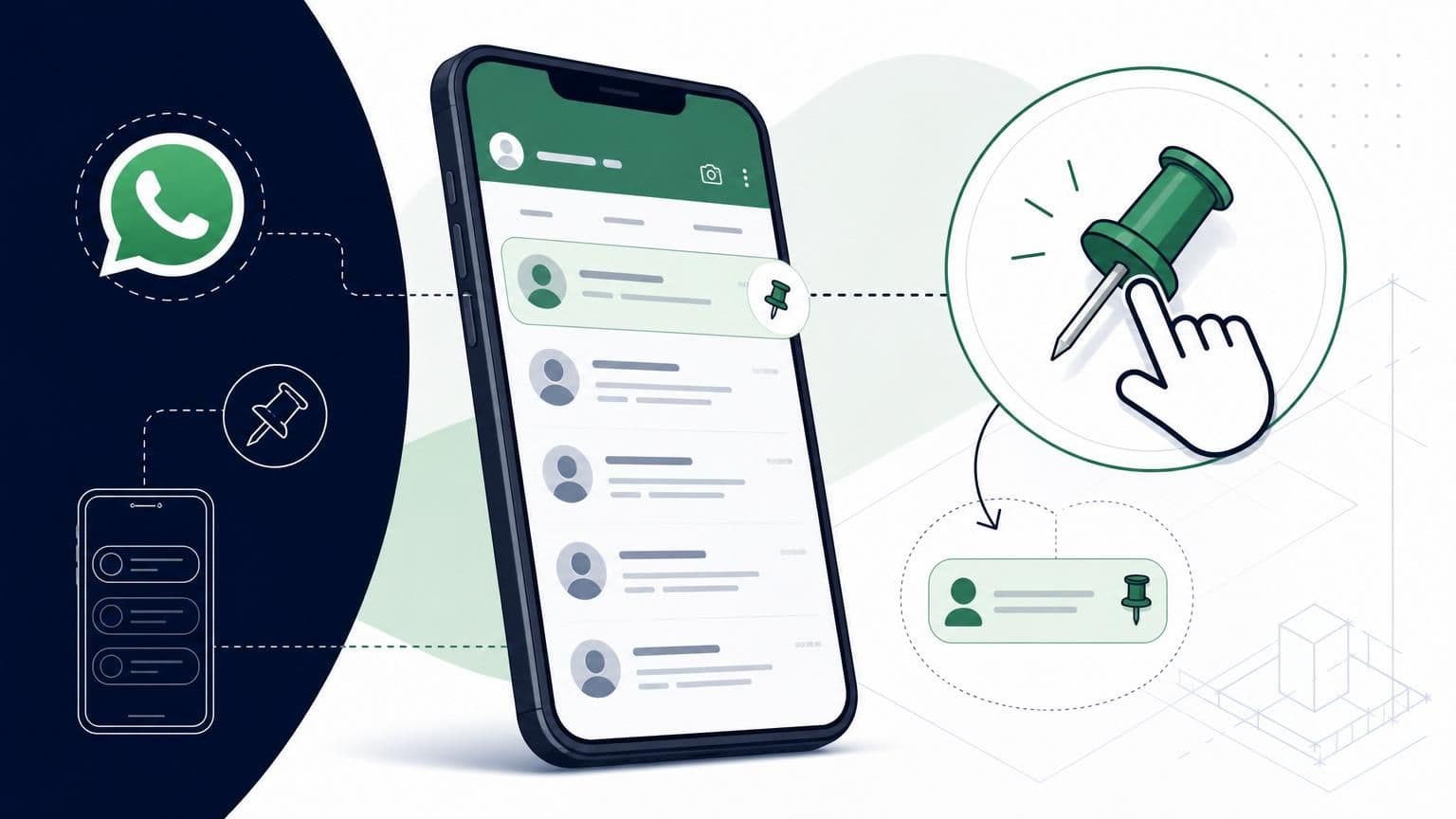
Your WhatsApp chat list is a mess. The group chat from your cousin's wedding sits right next to a VIP client thread, and somewhere below twelve muted groups is the conversation with your business partner you've been meaning to reply to all day. Sound familiar? Pinning chats fixes this problem in seconds. It locks your most critical conversations to the top of your screen so you never have to scroll and hunt. Whether you're managing personal relationships or fielding customer inquiries for your business, knowing how to pin a WhatsApp chat saves you real time every single day. This guide walks you through the process on every platform: Android, iPhone, desktop, and web. You'll also learn the limits, the workarounds, and a few tricks most people miss.
Understanding the Benefits of Pinning Chats
Pinning a chat in WhatsApp anchors it to the very top of your conversation list. No matter how many new messages flood in, pinned chats stay put. Think of it like taping a sticky note to the top of your monitor: it's always visible, always accessible.
This feature launched back in 2017, and WhatsApp currently lets you pin up to three chats. That limit forces you to be intentional about what matters most. For casual users, it might be a partner, a best friend, and a family group. For business owners, it's likely your highest-value client, your internal team chat, and a key vendor.
Prioritizing Important Conversations
The average person checks WhatsApp roughly 23 times per day, according to data from Statista. Each time you open the app and scroll past dozens of chats, you're bleeding time. Even five seconds of scanning adds up to nearly two minutes a day of wasted effort. That's the "scroll tax," and pinning eliminates it.
Pinning forces a simple but powerful question: which three conversations matter most right now? For a salon owner, that might be the chat with today's high-spend client, the staff scheduling group, and a supplier thread about a delayed shipment. For a financial advisor, it could be a prospect who's close to signing, a compliance team chat, and a mentorship thread.
The beauty of pinning is its flexibility. You can swap pins in and out as priorities shift. Finished that supplier negotiation? Unpin it and replace it with the next urgent thread. Your top three should reflect your current reality, not last week's.
Streamlining Your Workflow and Communication
Beyond personal convenience, pinning chats directly affects response times. A 2023 HubSpot report found that 82% of consumers expect a reply within 10 minutes on messaging apps. If your client's chat is buried under 40 other conversations, you're going to miss that window.
For small businesses using WhatsApp as a customer channel, pinning is the simplest form of inbox management. It costs nothing and takes one second. Pair it with WhatsApp's built-in labels, and you've got a basic triage system: pinned chats get immediate attention, labeled chats get scheduled follow-ups, and everything else waits.
If you're running a multi-channel operation, though, pinning three chats won't cut it. Platforms like Wexio let you manage WhatsApp alongside Telegram, Instagram, and Viber from a single dashboard. That unified inbox means you're not just pinning chats: you're routing, tagging, and assigning conversations across every channel your customers use. It's the difference between a sticky note and an actual system.

How to Pin Chats on Android Devices
Android makes pinning straightforward, though the exact look may vary slightly depending on your phone manufacturer and WhatsApp version. The core process has stayed consistent for years.
Step-by-Step Selection and Pinning
Here's how to pin a WhatsApp conversation on Android:
- Open WhatsApp and go to your Chats tab.
- Find the conversation you want to pin.
- Long-press on that chat. You'll see it highlighted, and a toolbar appears at the top.
- Tap the pin icon (it looks like a thumbtack) in the top toolbar.
- The chat jumps to the top of your list with a small pin icon beside it.
That's it. The whole thing takes about two seconds. You can also long-press to select multiple chats at once, though remember you're capped at three total pins.
One thing people miss: you can pin individual chats, group chats, and even broadcast lists. There's no restriction on chat type. If your most important conversation is a 50-person group, pin it.
Managing Multiple Pinned Chats
Once you've pinned three chats, WhatsApp won't let you add a fourth. You'll need to unpin one first. To do that, long-press the pinned chat you want to remove, then tap the pin icon again. It unpins instantly.
The order of your pinned chats follows a simple rule: the most recently active conversation sits at the top of the pinned section. You can't manually drag them into a custom order. If you want a specific chat at the very top, send a quick message in it, or wait for someone else to.
A practical tip for business users: review your three pins every morning. Ask yourself which conversations need the fastest replies today. A retail shop owner might pin a wholesale supplier during restocking week, then swap it for a loyal customer's chat during a holiday sale. Treat your pins like a daily priority list, not a permanent fixture.
If you find yourself constantly frustrated by the three-pin limit, that's a sign you've outgrown WhatsApp's native tools. A dedicated inbox solution can give you unlimited priority flags, automated routing, and team assignment features that pinning simply can't replicate.
Pinning Conversations on iOS for iPhone Users
The iPhone experience is slightly different from Android, mostly because Apple's interface leans on swipe gestures. The result is the same, but the muscle memory is distinct.
Using the Swipe Gesture to Pin
On iOS, you don't need to long-press. Instead:
- Open WhatsApp and head to the Chats tab.
- Find the chat you want to pin.
- Swipe right on that conversation. A pin icon appears.
- Tap the pin icon. Done.
The chat moves to the top of your list, displayed as a circular avatar. This visual treatment is unique to iOS: pinned chats on iPhone look like round bubbles at the top rather than regular list items. It makes them visually distinct, which is actually helpful when you're scanning quickly.
You can also use the long-press method on iOS. Long-press a chat, and a context menu appears with options including "Pin Chat." Both methods produce identical results. Use whichever feels more natural.
One quirk on iOS: if you have three chats pinned and try to swipe-pin a fourth, WhatsApp will prompt you to unpin one of the existing three. It handles the swap gracefully, so you don't need to manually unpin first. Android doesn't offer this shortcut, which makes the iOS experience slightly smoother.
For iPhone users managing business accounts, consider combining pins with WhatsApp's notification settings. You can set custom notification tones for pinned chats so you hear a distinct sound when your VIP clients message. That audio cue, paired with the visual pin, creates a two-layer priority system that keeps you responsive without constant screen-checking.
Pinning Chats on WhatsApp Web and Desktop
Not everyone manages WhatsApp from their phone. If you spend your workday at a computer, WhatsApp Web and the desktop app both support pinning. The interface differs from mobile, but the functionality is identical.
Using the Drop-Down Menu Interface
On WhatsApp Web or the desktop application:
- Open WhatsApp Web (web.whatsapp.com) or the desktop app.
- Hover over the chat you want to pin in the left sidebar.
- Click the small down arrow that appears on the right side of the chat.
- Select "Pin chat" from the dropdown menu.
- The chat moves to the top of your sidebar.
There's no swipe gesture on desktop, obviously. The dropdown menu is your only option. You can also right-click a chat to access the same menu, which feels more natural if you're used to desktop workflows.
The desktop pin icon is subtle: a small thumbtack next to the chat name. It's easy to overlook if you're not looking for it. But the positional change is obvious. Pinned chats always sit above unpinned ones, regardless of message recency.
Syncing Pinned Chats Across Devices
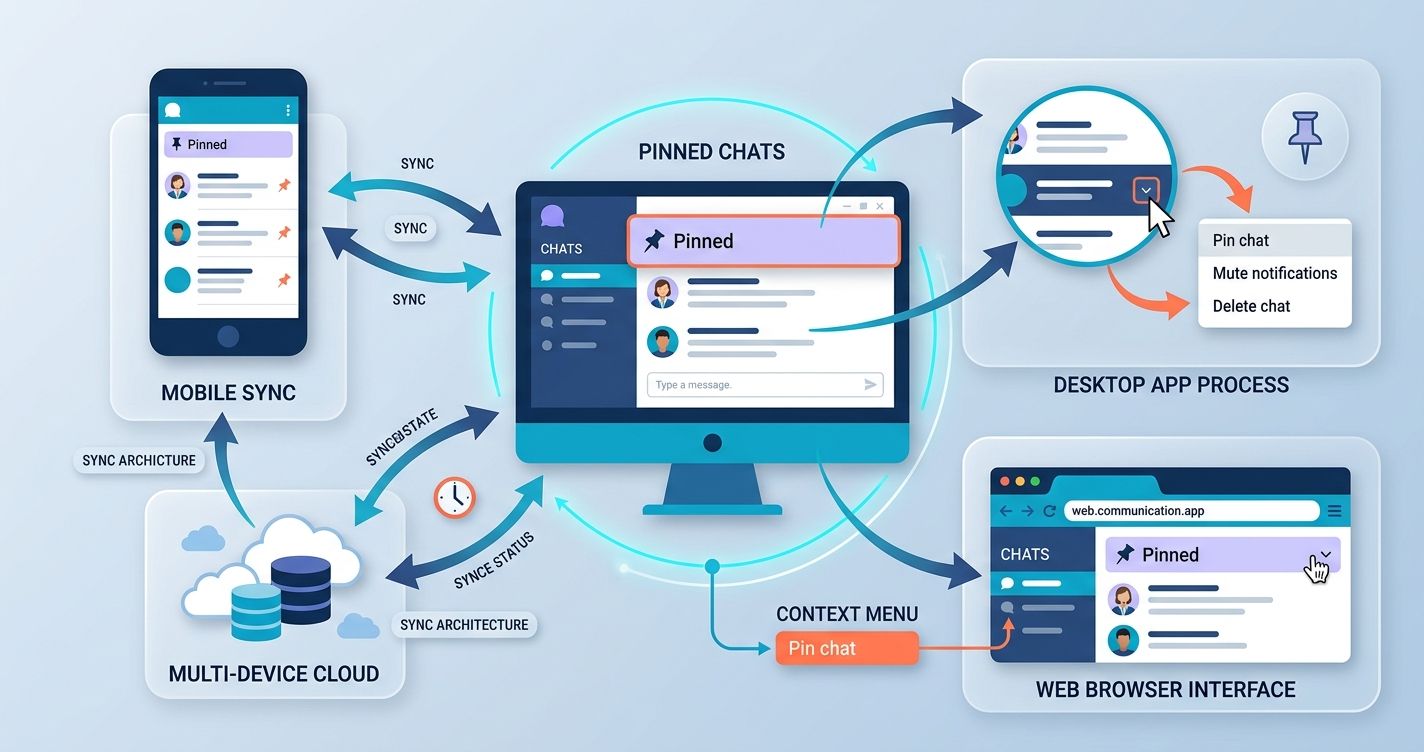
Here's where things get interesting, and slightly frustrating. Pinned chats do sync across your devices thanks to WhatsApp's multi-device architecture. If you pin a chat on your phone, it should appear pinned on WhatsApp Web too, and vice versa.
However, sync isn't always instant. It can take a few minutes, and occasionally a restart of the app is needed. If you pin something on desktop and it doesn't show on your phone, close and reopen WhatsApp on the phone. That usually forces the sync.
One important note: WhatsApp Web requires your phone to have an active internet connection for the initial setup, but multi-device support means it can function independently afterward. Your pins persist even if your phone goes offline temporarily.
For teams handling customer conversations across multiple devices, this sync behavior matters. You don't want a support agent pinning a chat on their desktop only to have another agent miss it on mobile. This is exactly where a platform like Wexio adds value: its unified inbox shows the same priority view to every team member, regardless of device, with no sync delays or inconsistencies. With 12+ industry-specific automation templates available out of the box, you can go beyond simple pinning and build actual workflows around your highest-priority conversations.
Limitations and Rules of the Pin Feature
Pinning is useful, but it's not a full inbox management system. Knowing its boundaries helps you use it effectively and recognize when you need something more.
The Three-Chat Maximum Limit
The biggest constraint is the three-pin cap. WhatsApp has maintained this limit since the feature launched, and there's no indication it'll change soon. Three pins work fine for personal use. For business use, it's often not enough.
Consider a healthcare clinic using WhatsApp to communicate with patients. On any given day, there might be five or six urgent patient threads, plus an internal staff chat, plus a pharmacy supplier conversation. Three pins can't cover that. You're forced to choose, and choosing means something important gets buried.
Other limitations worth knowing:
- Archived chats can't be pinned. You must unarchive first, then pin.
- Pinned chats still follow mute settings. Pinning doesn't override a muted conversation's notification behavior.
- No priority ranking within pins. You can't mark one pinned chat as more important than another. They're ordered by most recent activity only.
- Business accounts have the same limit. WhatsApp Business app users get the same three-pin maximum as regular WhatsApp users.
These constraints are fine for a casual user. But if you're running customer operations through WhatsApp, you'll hit the ceiling fast. That's the reality check: pinning is a convenience feature, not a business tool.
Troubleshooting and Unpinning Chats
Most pinning issues come down to outdated apps or simple misunderstandings about how the feature works. Here's how to fix common problems and manage your pins over time.
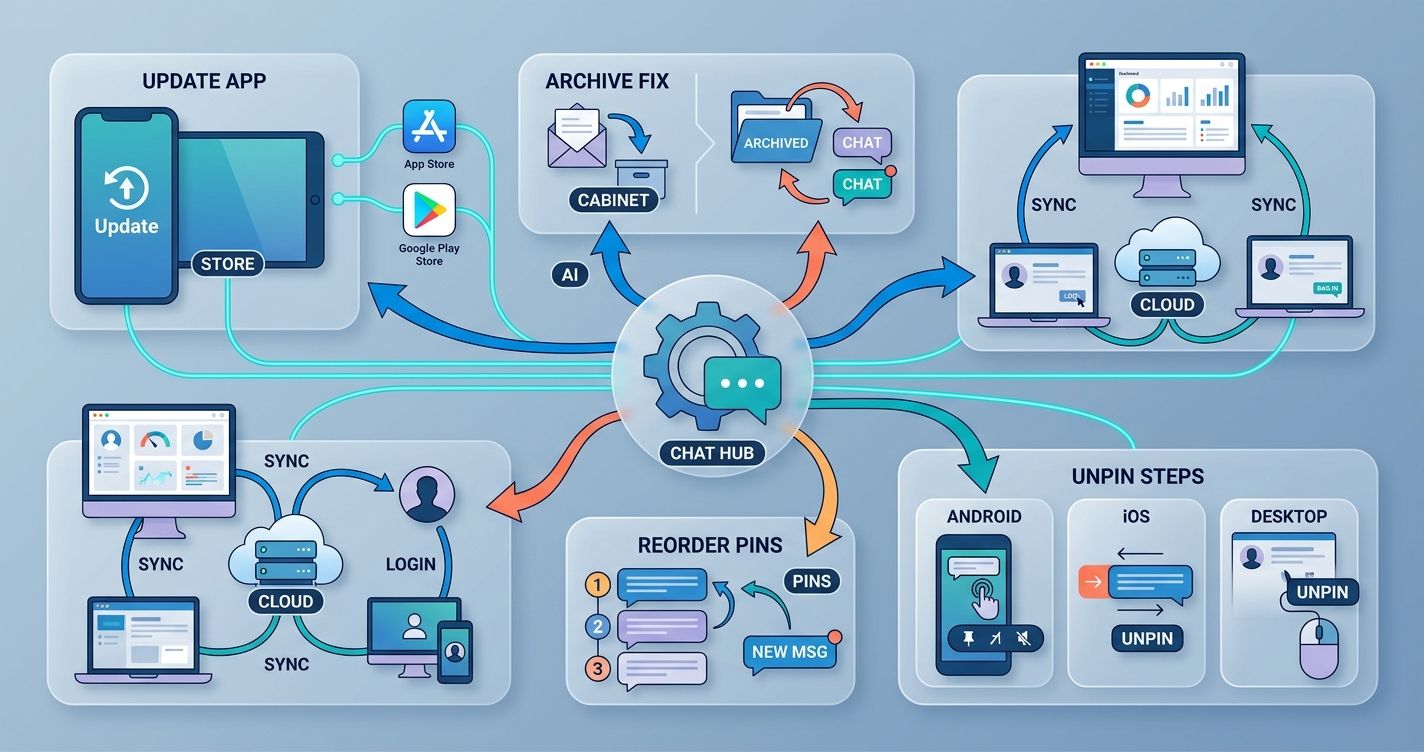
If you can't find the pin option, update your app. WhatsApp occasionally moves interface elements between versions. On very old versions (pre-2017), pinning doesn't exist at all. Head to the Google Play Store or Apple App Store and grab the latest update.
If a pinned chat disappears, check whether you accidentally archived it. Archiving overrides pinning, and the chat drops off your main list. Scroll to the bottom of your chat list, tap "Archived," find the conversation, unarchive it, and re-pin.
If pins aren't syncing between devices, try logging out of WhatsApp Web and logging back in. On the desktop app, a full restart usually resolves it. Persistent sync issues sometimes point to a weak internet connection on one of your devices.
How to Reorder or Remove Pins
WhatsApp doesn't offer manual reordering. Your pinned chats sort by most recent activity, period. If you need Chat A above Chat B, send a message in Chat A. It'll jump to the top of the pinned section.
To unpin a chat:
- On Android: Long-press the pinned chat, then tap the pin icon in the toolbar.
- On iOS: Swipe right on the pinned chat and tap the pin icon, or long-press and select "Unpin Chat."
- On Desktop/Web: Click the dropdown arrow or right-click, then select "Unpin chat."
Unpinning is instant. The chat drops back into your regular list, sorted by its most recent message. No data is lost, and your conversation history stays intact.
A smart habit: review your pins weekly. Ask whether those three conversations still deserve top billing. If a project wraps up or a client relationship enters a quieter phase, free that pin slot for something more pressing. Treat your pins like real estate: limited and valuable.
For teams juggling dozens of active customer conversations, review your chat transcripts regularly. They're free user research. You'll spot patterns: which conversations keep getting pinned, which ones get lost, where response times slip. Those patterns reveal whether you need better tools or just better habits.
Making the Most of Your Pinned Chats
Pinning WhatsApp chats is one of those small features that punches above its weight. Three taps, and your most critical conversations are always visible. No scrolling, no searching, no missed replies. On Android, you long-press. On iPhone, you swipe right. On desktop, you click a dropdown. Every platform supports it, and your pins sync across devices.
The three-chat limit is real, though. For personal use, it's plenty. For businesses managing customer conversations at scale, it's a starting point, not a solution. Knowing how to pin a WhatsApp chat is step one. Building a real communication system around your messaging channels is step two.
If you're ready to move beyond three pinned chats and start managing customer conversations across WhatsApp, Telegram, Instagram, and Viber from one place, Wexio's free tier gives you 100 operations per month with no credit card required. Get started at Wexio and see what a proper messaging workflow looks like.