Video calling through WhatsApp has become second nature for billions of people. Whether you're catching up with family overseas or hopping on a quick face-to-face chat with a colleague, the app makes it dead simple. But there's more to WhatsApp video calls than just tapping a camera icon. Group calls, screen sharing, background effects, desktop support, and call links all exist in the 2026 version of the app, and most people don't use half of them.
This guide covers everything you need to know about making video calls on WhatsApp Messenger, from the basics of getting set up to advanced features and troubleshooting. If you've ever had a call drop mid-sentence or wondered how to add a fifth person to a group call, you're in the right place. Stick around, because a few of these tips will save you real headaches.
For businesses, video calling on WhatsApp isn't just a personal convenience. It's a customer engagement channel. A quick video call can replace a dozen back-and-forth messages when a client needs visual guidance. Platforms like Wexio help businesses manage those WhatsApp conversations alongside Telegram, Instagram, and Viber from a single inbox, so nothing falls through the cracks. But first, you need to know how the calling features actually work.
Getting Started with WhatsApp Video Calling
Before you tap that green camera button, a few basics need to be in order. Your phone, your internet connection, and your app permissions all play a role in call quality. Skip this section at your own risk: a weak setup leads to choppy video and frustrated callers.
System Requirements and Internet Connection
WhatsApp video calls work on Android 5.0 and above, iOS 12 and above, and KaiOS 2.5+. Your phone doesn't need to be brand new, but anything older than about 2018 might struggle with group calls. Make sure you're running the latest version of WhatsApp from the App Store or Google Play. Outdated versions miss out on features and bug fixes.
Your internet connection matters more than your phone model. WhatsApp recommends at least 1 Mbps upload and download speed for a one-on-one video call. Group calls with four or more people need closer to 4 Mbps. Wi-Fi is your best friend here. If you're on mobile data, a strong 4G or 5G signal works fine, but watch your data usage. A 10-minute video call eats roughly 50-70 MB depending on video quality.
One quick test: open your browser and run a speed test before an important call. If your speeds are below 1 Mbps, switch networks or move closer to your router. That single step prevents most call quality complaints.
Granting Camera and Microphone Permissions
WhatsApp can't access your camera or mic unless you explicitly allow it. On both Android and iOS, the app will prompt you the first time you try a video call. Say yes. If you accidentally denied permission earlier, you'll need to fix it manually.
On Android, go to Settings, then Apps, find WhatsApp, tap Permissions, and toggle Camera and Microphone to "Allow." On iPhone, open Settings, scroll to WhatsApp, and flip both switches on. Without these permissions, your call will connect but the other person will see a black screen and hear silence. Not exactly a great experience.
If you're on a work phone with managed device policies, your IT admin might have restricted camera access. Check with them before assuming the app is broken.
How to Start a One-on-One Video Call
One-on-one calls are the bread and butter of WhatsApp video calling. There are two ways to start one, and both take about three seconds.
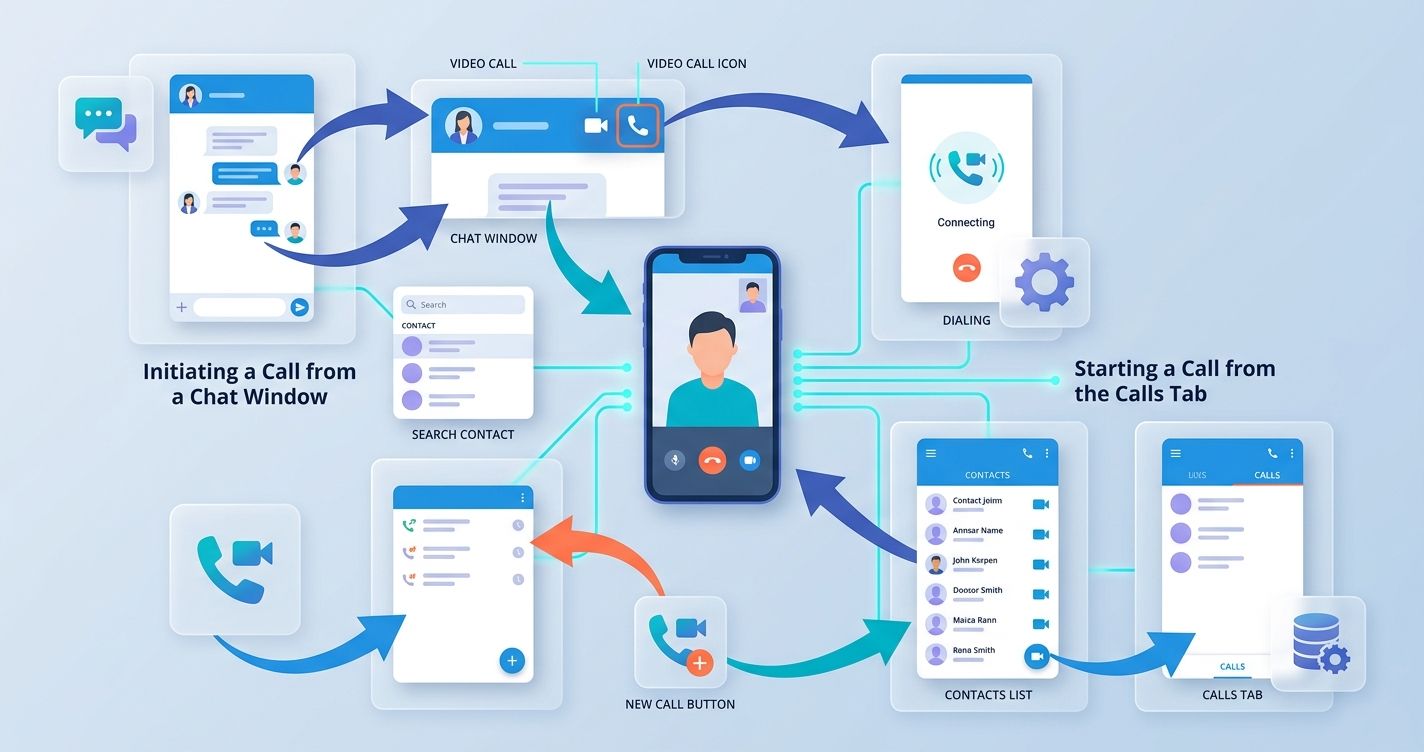
Initiating a Call from a Chat Window
This is the most common method. Open your conversation with the person you want to call. Look at the top-right corner of the chat window. You'll see a phone icon and a camera icon. Tap the camera icon. That's it. WhatsApp dials the contact immediately.
If the person isn't in your recent chats, search for their name using the search bar at the top of your chat list. Open the conversation, then tap the camera icon. You can also tap on their profile name at the top of the chat, which opens their contact info page. From there, you'll see a video call button.
One thing to note: the person you're calling needs to have WhatsApp installed and an active internet connection. If they're unreachable, the call will ring for about 45 seconds before timing out.
Starting a Call from the Calls Tab
The Calls tab sits at the bottom of your WhatsApp screen on iOS and at the top on Android. Tap it, and you'll see your recent call history. To start a new call, tap the phone icon with a plus sign (bottom-right on Android, top-right on iOS).
WhatsApp will show your contacts list. Find the person you want to reach and tap the camera icon next to their name. The video call starts immediately. This method is faster when you don't have an active chat with someone or when you don't want to scroll through your messages to find them.
You can also use this tab to redial. If you see a recent video call in your history, just tap on it to call again.
Managing Group Video Calls
Group video calls on WhatsApp support up to 32 participants as of 2026. That's enough for a small team meeting, a family reunion, or a client consultation with multiple stakeholders.
Starting a Call in a Group Chat
Open the group chat you want to call. Tap the camera icon in the top-right corner. WhatsApp won't ring every group member at once. Instead, it shows you a screen where you select which participants to include. Pick your people, then tap the call button.
This selective approach is intentional. Nobody wants their phone ringing for a call that doesn't involve them. You can pick anywhere from 1 to 31 other participants. The call starts as soon as you confirm your selection.
If you're in a group with 50 people but only need five of them, this works perfectly. You don't need to create a separate smaller group just for the call.
Adding Participants to an Ongoing Call
Already on a one-on-one call and realize you need someone else? Tap the "Add participant" button at the bottom of the call screen. It looks like a person icon with a plus sign. Search for the contact, tap their name, and WhatsApp sends them an invite to join.
You can keep adding people up to the 32-person limit. Each new participant sees a notification and can accept or decline. This is handy for business scenarios where a quick product demo turns into a broader team discussion. No need to hang up and start over.
Creating and Sharing Call Links
Call links are one of WhatsApp's most underrated features. Go to the Calls tab, tap "Create call link," and choose "Video call." WhatsApp generates a shareable link. Send it through any channel: email, text, another chat, or even a QR code.
Anyone with the link can join the call, even if they're not in your contacts. This is huge for businesses. Imagine sending a video call link to a client via your booking confirmation email. They tap the link at the scheduled time and join instantly.
For businesses using Wexio's automation flows, you could trigger a WhatsApp message containing a call link after a customer books an appointment. The no-code flow builder makes this kind of automation straightforward, and it saves your team from manually sending links to every client.
Advanced Features and In-Call Controls
Once you're on a call, WhatsApp gives you more control than most people realize. Here's what's available on the call screen.
Switching Between Cameras and Muting Audio
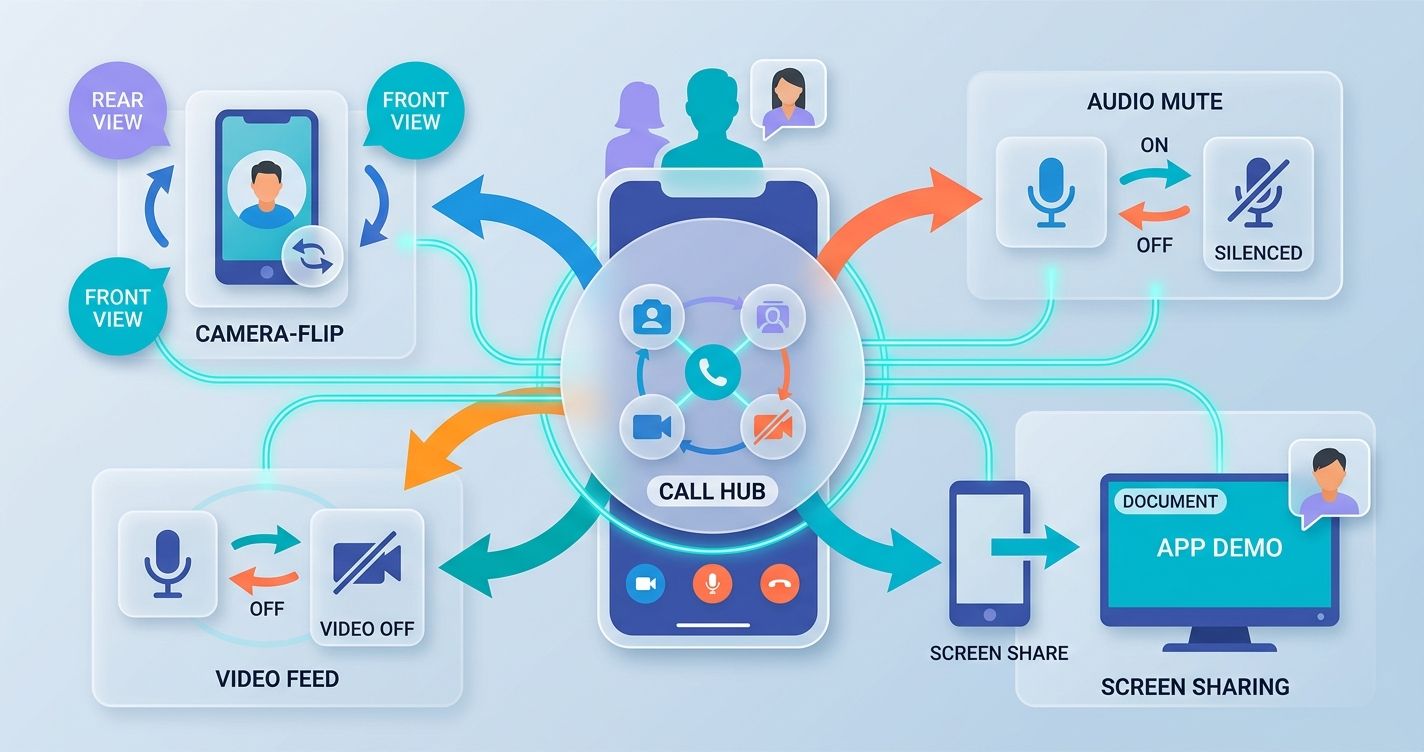
During any video call, you'll see a row of control buttons at the bottom of your screen. The camera-flip icon switches between your front and rear cameras. Tap it once to show the other person what you're looking at instead of your face. Tap again to switch back.
The microphone icon mutes your audio. A quick tap silences your end of the call. This is useful when there's background noise or when someone else in the room is talking. The camera-off button works the same way: tap it to turn your video feed off while staying on the call.
These controls are responsive and don't lag. You can flip cameras mid-sentence without dropping a frame.
Using Screen Sharing During a Call
Screen sharing arrived on WhatsApp in late 2023 and has been refined since. During a video call, tap the screen share icon (it looks like a phone with an arrow). Your entire screen becomes visible to the other participants.
This is incredibly useful for walking someone through an app, showing a document, or presenting slides. Your camera feed shrinks to a small bubble in the corner so the other person can still see you. To stop sharing, tap the "Stop sharing" button or end the call.
One caution: screen sharing shows everything on your screen, including notifications. Turn on Do Not Disturb before sharing to avoid accidentally flashing a private message.
Applying Filters and Background Effects
WhatsApp added background blur and replacement options that work during video calls. Before or during a call, tap the effects icon (a sparkle or wand symbol, depending on your device). You can blur your background, choose a solid color, or select from preset background images.
These effects run locally on your device, so they don't require extra bandwidth. They're practical for calls where your surroundings are messy or distracting. The blur effect works well on phones from 2020 onward. Older devices might see a slight performance hit.
Filters for adjusting lighting and color temperature are also available. If you're in a dimly lit room, the "warm" filter can make your video feed look less washed out.
Video Calling on WhatsApp Desktop and Web
WhatsApp Desktop (the standalone app for Windows and Mac) supports video calls with up to 32 people. WhatsApp Web in your browser also supports video calls as of 2025, though the desktop app tends to perform better.
To make a video call from your computer, open WhatsApp Desktop. Click on a chat, then click the camera icon in the top-right corner. Your computer's webcam and microphone activate, and the call connects. Group calls work the same way: open a group, click the camera, select participants.
The desktop experience is great for longer calls. You get a bigger screen, better speakers (usually), and you can multitask more easily. Screen sharing from desktop is also smoother since you can share specific windows instead of your entire screen.
One requirement: your phone must be connected to the internet for WhatsApp Desktop to work, even though the call audio and video route through your computer. If your phone loses connection, the desktop app disconnects too. WhatsApp's multi-device support has improved this significantly, but a stable phone connection is still the foundation.
For business teams handling customer calls, the desktop app is the better choice. It's easier to reference CRM data, pull up order histories, or check notes while on a call. If your team uses a platform like Wexio, you can manage incoming WhatsApp messages in the unified inbox on one screen while taking a video call on another. That eliminates the tab-switching tax that bleeds time during customer interactions.

Troubleshooting Common Video Call Issues
Even with good hardware and fast internet, things go wrong. Here are the two most common problems and how to fix them fast.
Fixing Audio and Video Lag
Lag during a WhatsApp video call almost always traces back to internet speed. Your first move: switch from mobile data to Wi-Fi, or vice versa. Sometimes one network is congested while the other is clear.
If you're on Wi-Fi, move closer to your router. Walls and distance weaken the signal. Close other apps that might be hogging bandwidth: streaming services, large downloads, or cloud backups running in the background.
Step one: run a speed test. If you're below 1 Mbps, that's your problem. Step two: restart your router. It takes 30 seconds and fixes more issues than you'd expect. Step three: close background apps on your phone. Android users can check Settings, then Battery, then Battery Usage to see which apps are consuming resources.
If lag persists, try turning off your video and continuing with audio only. This dramatically reduces bandwidth requirements. You can toggle video back on once conditions improve.
Also check your WhatsApp storage. If your phone is nearly full, app performance drops across the board. Clear old media files or move them to cloud storage.
Resolving Connection Dropped Errors
Dropped calls happen when your internet connection briefly cuts out. WhatsApp tries to reconnect automatically, but if the gap is too long (more than a few seconds), the call ends.
The fix depends on the pattern. If calls drop at the same time every day, your ISP might be throttling traffic during peak hours. Test with a VPN to confirm. If calls drop when you move around, your phone is likely switching between Wi-Fi and cellular, causing a brief disconnect. Disable Wi-Fi if you're on a strong cellular signal, or stay within Wi-Fi range.
Persistent dropped calls on a specific network could mean a firewall or router setting is blocking WhatsApp's traffic. WhatsApp uses UDP ports 3478, 5242, and 45395-65535. If you're on a corporate or school network, these ports might be restricted. Ask your network admin to whitelist them.
One last thing: force-close WhatsApp and reopen it. A fresh app session clears temporary glitches that accumulate over long periods of use. On Android, swipe the app away from your recent apps tray. On iPhone, swipe up from the bottom and flick WhatsApp off the screen.
Making the Most of WhatsApp Video Calls
WhatsApp's video calling features have matured into a full communication toolkit. From one-on-one calls that take three seconds to start, to 32-person group calls with screen sharing and background effects, the app covers most use cases without needing a separate tool.
The key to a good experience is preparation. Keep your app updated, check your internet speed before important calls, and grant the right permissions upfront. For group calls, use call links to simplify scheduling. For business calls, the desktop app gives you room to multitask.
If your business relies on WhatsApp for customer communication and you're juggling video calls, chat messages, and inquiries across multiple channels, a unified platform can save hours each week. Wexio brings WhatsApp, Telegram, Instagram, and Viber into one dashboard with AI-powered automation, so your team spends less time switching tabs and more time helping customers. You can get started at Wexio with a free tier that includes 100 operations per month, no credit card required.
Your next video call is probably just a tap away. Make sure you're set up to get the most out of it.