Over 50 million businesses worldwide already use WhatsApp Business to connect with customers who expect fast, personalized communication. That's not a niche trend. It's a full-blown shift in how companies sell, support, and retain buyers. And with WhatsApp messages hitting a 98% open rate, ignoring this channel means leaving money on the table.
But here's the thing: tapping out replies on your phone all day isn't practical. Your thumbs get tired. Your responses slow down. You miss messages while juggling other tasks. That's exactly why the desktop version exists. WhatsApp Business on the web gives you a full-size screen, a real keyboard, and the ability to handle customer conversations without squinting at a 6-inch display. This guide walks you through setup, features, security, limitations, and the workflow habits that separate casual users from teams that actually get results.
Getting Started with WhatsApp Business Web
Getting up and running takes about two minutes. Seriously. But a few details matter if you want a smooth experience from day one.
System Requirements and Browser Compatibility
You don't need a beefy machine. Any computer from the last five or six years will work fine. The web version runs inside your browser, so there's no software to install. Google Chrome, Mozilla Firefox, Microsoft Edge, Safari, and Opera are all supported. Keep your browser updated to the latest version to avoid glitches.
Your internet connection matters more than your hardware. A stable broadband or Wi-Fi connection prevents messages from lagging or failing to send. If you're on a spotty connection, expect delays in loading media files like images, videos, and voice notes.
One requirement catches people off guard: you need an active WhatsApp Business account on your phone first. The web version mirrors your mobile account. No phone account, no web access. Make sure your phone has WhatsApp Business installed and verified before you sit down at your computer.
Step-by-Step Linking Process via QR Code
Step one: open your browser and go to web.whatsapp.com. You'll see a QR code on the screen.
Step two: grab your phone and open WhatsApp Business. On Android, tap the three-dot menu in the top right, then select "Linked Devices." On iPhone, go to Settings, then tap "Linked Devices."
Step three: tap "Link a Device." Your phone's camera will activate. Point it at the QR code on your computer screen. Within seconds, your chats load on the desktop.
That's it. Your conversations, labels, and quick replies all appear on the big screen. If the QR code expires before you scan it, just click the reload button on the web page to generate a fresh one.
Multi-Device Beta: Using Web Without a Phone Connection
This feature changed everything for people who travel or have unreliable phone batteries. With multi-device support, your linked desktop stays connected even when your phone is off, dead, or disconnected from the internet.
WhatsApp allows up to four linked devices at once. Each device maintains its own independent connection to WhatsApp's servers. So if your phone dies mid-conversation, your desktop session keeps running without interruption.
There's a catch, though. If your phone stays offline for more than 14 days, your linked devices will disconnect automatically. WhatsApp requires periodic phone check-ins to keep everything synced. Just make sure your phone connects to the internet at least once every two weeks and you'll be fine.
Core Features for Desktop Productivity
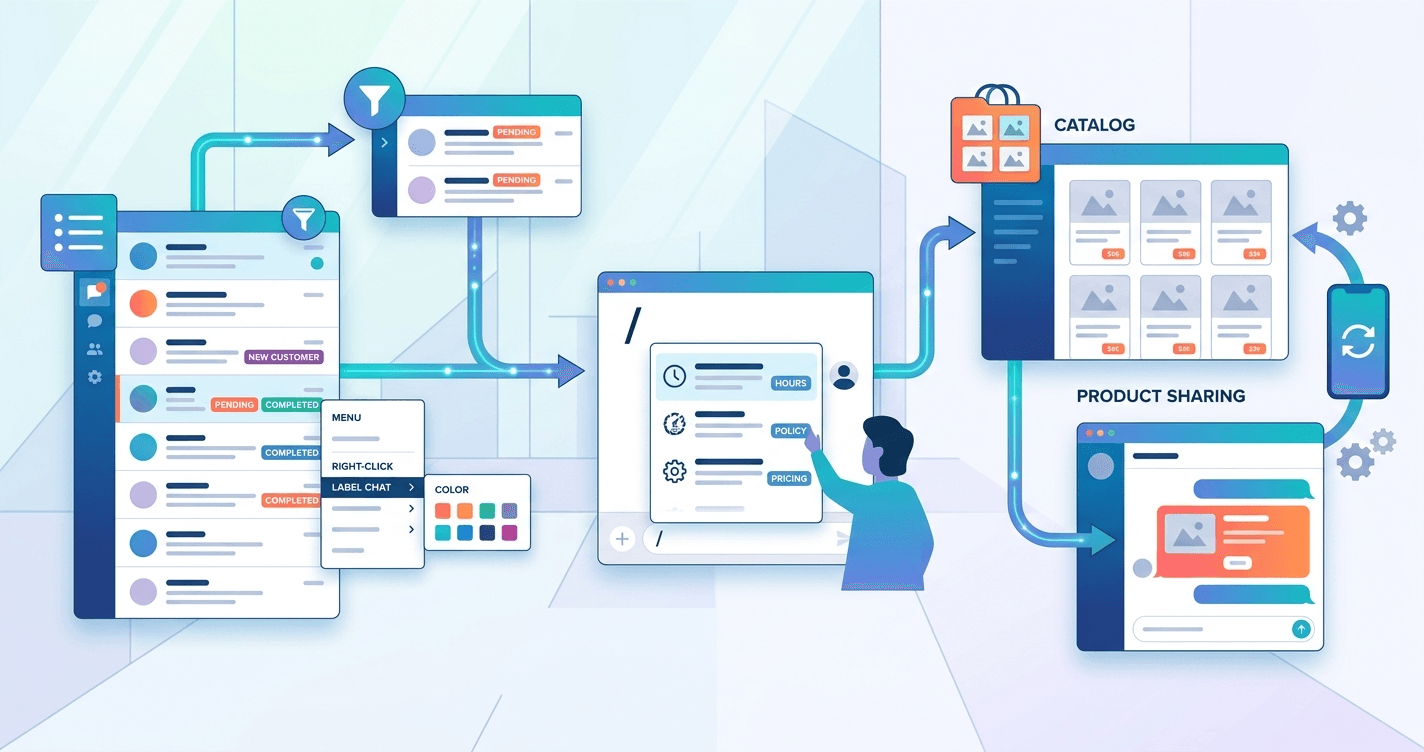
The desktop version isn't just a bigger screen for typing. It packs tools that help you work faster and stay organized, especially if you're handling dozens of customer conversations daily.
Managing Customer Labels and Filters
Labels are your best friend for organizing chats. Think of them as color-coded folders. You can tag conversations with labels like "New Customer," "Pending Payment," "Order Complete," or anything custom you create.
To apply a label, right-click on a chat and select "Label chat." Pick an existing label or create a new one. You can stack multiple labels on a single conversation, which is handy for customers who fall into more than one category.
Filtering by label is where the real productivity kicks in. Click the filter icon at the top of your chat list and select a label. Instantly, you see only the conversations tagged with that label. This saves you from scrolling through hundreds of chats to find the five people waiting on a shipping update. For small teams handling support, sales, and follow-ups from one account, labels prevent conversations from slipping through the cracks.
Utilizing Quick Replies for Faster Support
Typing the same answer fifty times a day is a waste. Quick replies let you save frequently used messages and insert them with a keyboard shortcut.
To set them up, go to your WhatsApp Business settings on your phone, then tap "Business Tools" and "Quick Replies." Create a message, assign it a shortcut keyword, and save. On the desktop, type "/" in any chat to pull up your list of quick replies. Select the one you need, and it drops into the message field instantly.
Good quick replies to have ready include your business hours, return policy, pricing details, directions to your location, and a polite "we'll get back to you shortly" message. Customers expect fast replies. Businesses using WhatsApp see a 27% revenue increase and 35% higher customer retention, and speed plays a big role in those numbers. Quick replies help you respond in seconds instead of minutes.
Catalog Management and Product Sharing
Your product catalog lives right inside WhatsApp Business. Customers can browse items without leaving the chat, which removes friction from the buying process.
On the desktop, you can view your catalog and share individual products or the entire catalog link directly in a conversation. To share a product, click the attachment icon in a chat, select "Catalog," and pick the item. The customer receives a product card with the image, description, and price.
Setting up the catalog itself still happens on your phone. You add products with photos, descriptions, prices, and links through the Business Tools section. Once created, everything syncs to the web version automatically. For retail shops, beauty salons, or any business with a product lineup, this feature turns your chat into a mini storefront. Global sales of $45 billion are expected to flow through WhatsApp commerce this year, and catalog sharing is one reason why.
WhatsApp Business Web vs. Desktop App
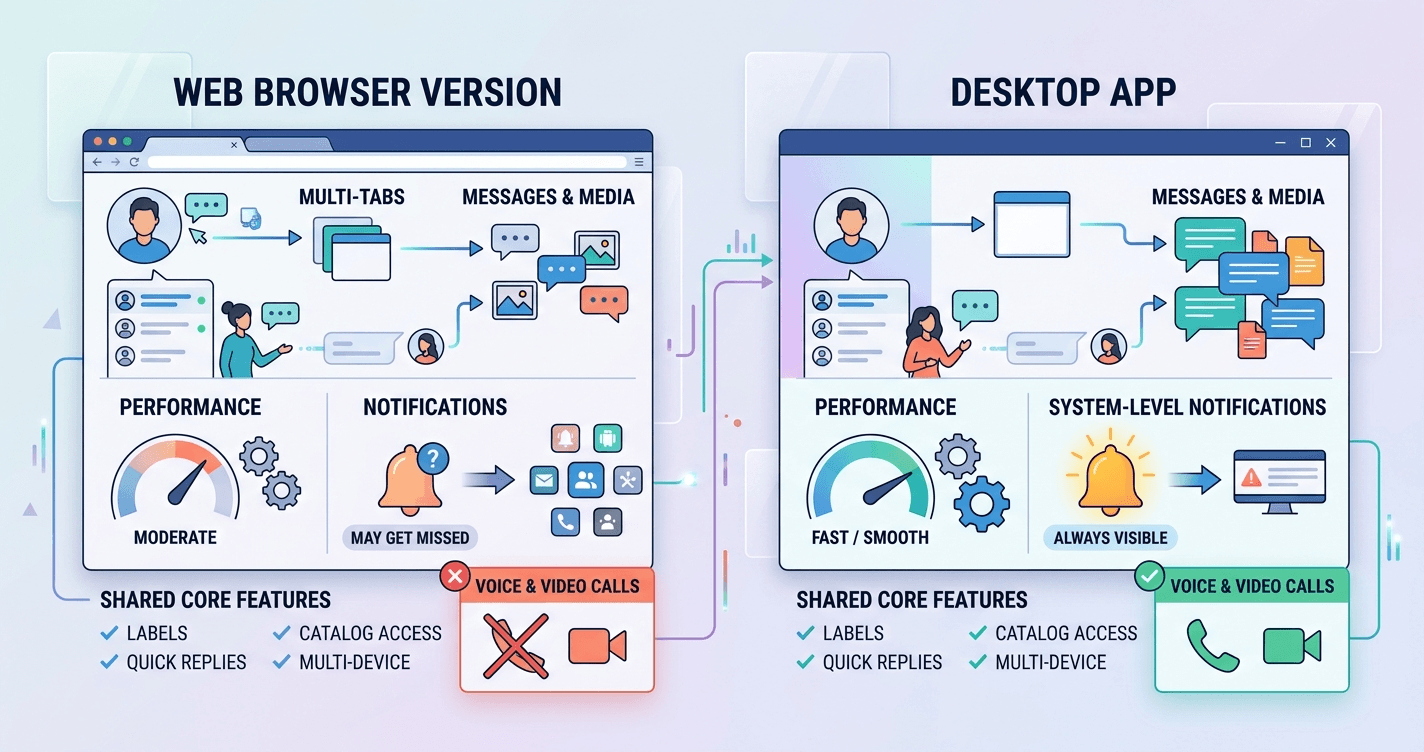
You've got two options for using WhatsApp Business on your computer: the browser-based web version and the downloadable desktop app. They look almost identical, but a few differences matter.
Performance and Notification Differences
The desktop app runs as a native application on Windows or Mac. Because it's installed locally, it tends to handle large volumes of messages and media files more smoothly than the browser version. If you're managing a high-traffic account with lots of images and documents, the app feels snappier.
Notifications also behave differently. The desktop app delivers system-level notifications that appear even when the app is minimized. Browser notifications depend on your browser settings and can get buried under other tabs. If you've ever missed a customer message because Chrome was hiding behind fifteen other windows, you know the pain. The desktop app fixes that.
Both versions share the same core features: labels, quick replies, catalog access, and multi-device support. The differences are mostly about how the experience feels, not what you can do.
Native Voice and Video Calling Capabilities
Here's where the desktop app pulls ahead. It supports voice and video calls directly. The web version does not.
If your business relies on quick phone consultations, virtual appointments, or video walkthroughs, the desktop app is the better choice. Healthcare providers, educators, and consultants especially benefit from this. You can take a call without switching to your phone or opening a separate video tool.
The web version limits you to text, images, documents, and voice messages. For many businesses, that's plenty. But if calling is part of your workflow, install the desktop app instead of relying on the browser.
Security and Privacy for Business Communications
Customer trust depends on how you handle their data. WhatsApp uses end-to-end encryption by default, which means messages are readable only by you and the person you're chatting with. But encryption alone isn't enough if someone walks up to your unlocked computer.
Managing Active Sessions and Remote Logout
Every linked device shows up in your phone's "Linked Devices" list. You can see which devices are connected, when they were last active, and their browser or operating system.
If you spot a session you don't recognize, or if you left yourself logged in on a shared computer, tap that session and hit "Log Out." It disconnects instantly. You can also tap "Log out of all devices" for a full reset. Make this a habit: check your active sessions weekly. It takes ten seconds and prevents unauthorized access.
For teams sharing a workspace, remote logout is essential. An employee leaves the company? Log out their session from your phone before they walk out the door.
Screen Lock Features for Shared Workspaces
WhatsApp recently added screen lock for the desktop app. You set a password, and after a period of inactivity, the app locks itself. Anyone who walks up to your computer sees a password prompt instead of your customer conversations.
To enable it, open the desktop app, go to Settings, then Privacy, and toggle on Screen Lock. Set your preferred timeout interval. This feature isn't available on the web browser version, which is another reason the desktop app edges ahead for security-conscious teams.
If you're working from a co-working space, a shared office, or anywhere other people have physical access to your machine, screen lock isn't optional. It's a basic precaution that protects your customers' personal information.
Limitations of the Free Web Version
The free version is genuinely useful. But it has boundaries that become obvious once your business grows past a certain point.
User Seat Limits and Multi-Agent Constraints
Only one person can use the WhatsApp Business account at a time per device. You can link up to four devices, but they all share the same account. There's no way to assign conversations to specific team members, track who replied to what, or manage agent workloads.
For a solo entrepreneur or a two-person team, this works fine. For a business with five support agents who need simultaneous access, it breaks down fast. You end up with the tab-switching tax: agents stepping on each other's replies, duplicating responses, or missing messages entirely.
There's no built-in analytics dashboard either. You can't see response times, resolution rates, or conversation volumes. You're flying blind on performance metrics, which makes it hard to improve.
When to Upgrade from Web to WhatsApp Business API
The free version caps out when you need multiple agents, automation beyond quick replies, or integration with your CRM. That's when the WhatsApp Business API becomes the right move. Enterprise spending on WhatsApp Business is projected to exceed $3.6 billion, and the API is driving most of that investment.
The API doesn't have its own interface. You access it through a platform like Wexio, which gives you a unified inbox for WhatsApp, Telegram, Instagram, and Viber. Multiple agents handle conversations simultaneously. A no-code flow builder lets you create automated responses with conditional branching, so common questions get answered without human involvement. Wexio even offers 12 industry-specific automation templates out of the box, covering everything from appointment booking to order tracking.
The trigger for upgrading is usually volume. If you're handling more than 50 conversations per day, or if customers are waiting longer than five minutes for a first response, the free version is bleeding time you can't afford to lose.
Best Practices for Efficient Desktop Workflow
Getting the most from your desktop setup comes down to habits, not features. Here are the practices that separate organized teams from chaotic ones.
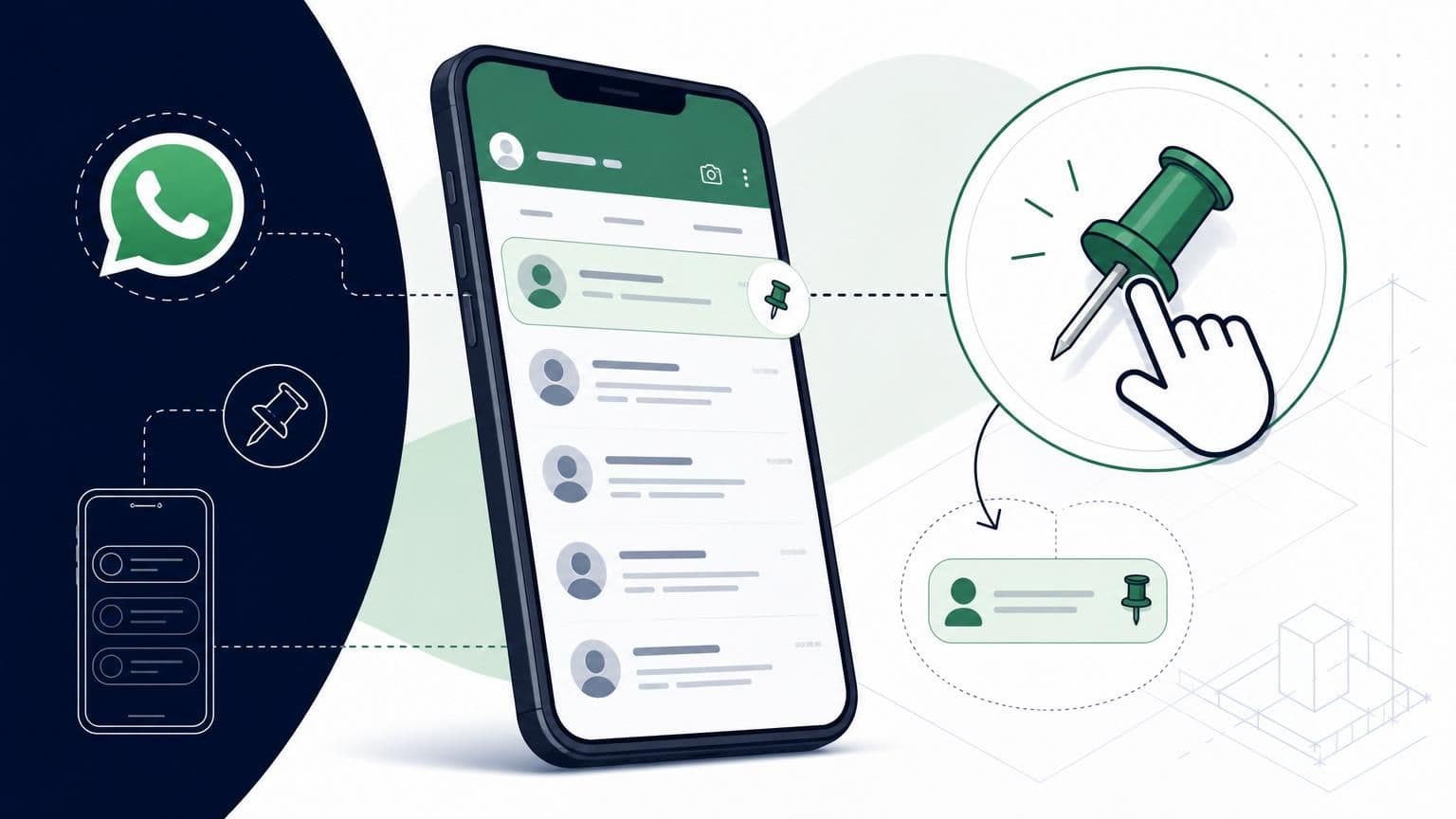
Pin your most important conversations. Right-click a chat and select "Pin." Pinned chats stay at the top of your list, so VIP customers and active deals never get buried.
Set your business hours and away messages on your phone. These carry over to the web version. When a customer messages you outside working hours, they get an automatic reply instead of silence. That small touch builds trust and sets expectations.
Review your chat transcripts weekly. This is free user research. Look for repeated questions you haven't added to your quick replies. Spot moments where customers get confused or drop off. Use the median response time across your chats, not just the average, to account for outlier conversations that skew your numbers.
Use keyboard shortcuts to move faster. Ctrl+Shift+M mutes a chat. Ctrl+Shift+U marks a chat as unread so you remember to follow up. Ctrl+E archives a conversation you're done with. These small shortcuts compound into hours saved over a month.
If you're outgrowing the free version and want to connect your WhatsApp conversations with other messaging channels, Wexio's free tier gives you 100 operations per month with no credit card required. It's a low-risk way to test whether a unified inbox and AI-powered automation actually move the needle for your business.
The desktop version of WhatsApp Business is a strong starting point for any small or mid-size business. It costs nothing, takes minutes to set up, and puts your customer conversations on a screen where you can actually work efficiently. Master the basics covered here: labels, quick replies, catalog sharing, security habits, and keyboard shortcuts. Then, when your volume outgrows the free tools, you'll know exactly what to look for in your next step up.
Ready to bring all your messaging channels into one place and let automation handle the repetitive work? Get started with Wexio and see what a unified inbox can do for your response times and customer satisfaction.