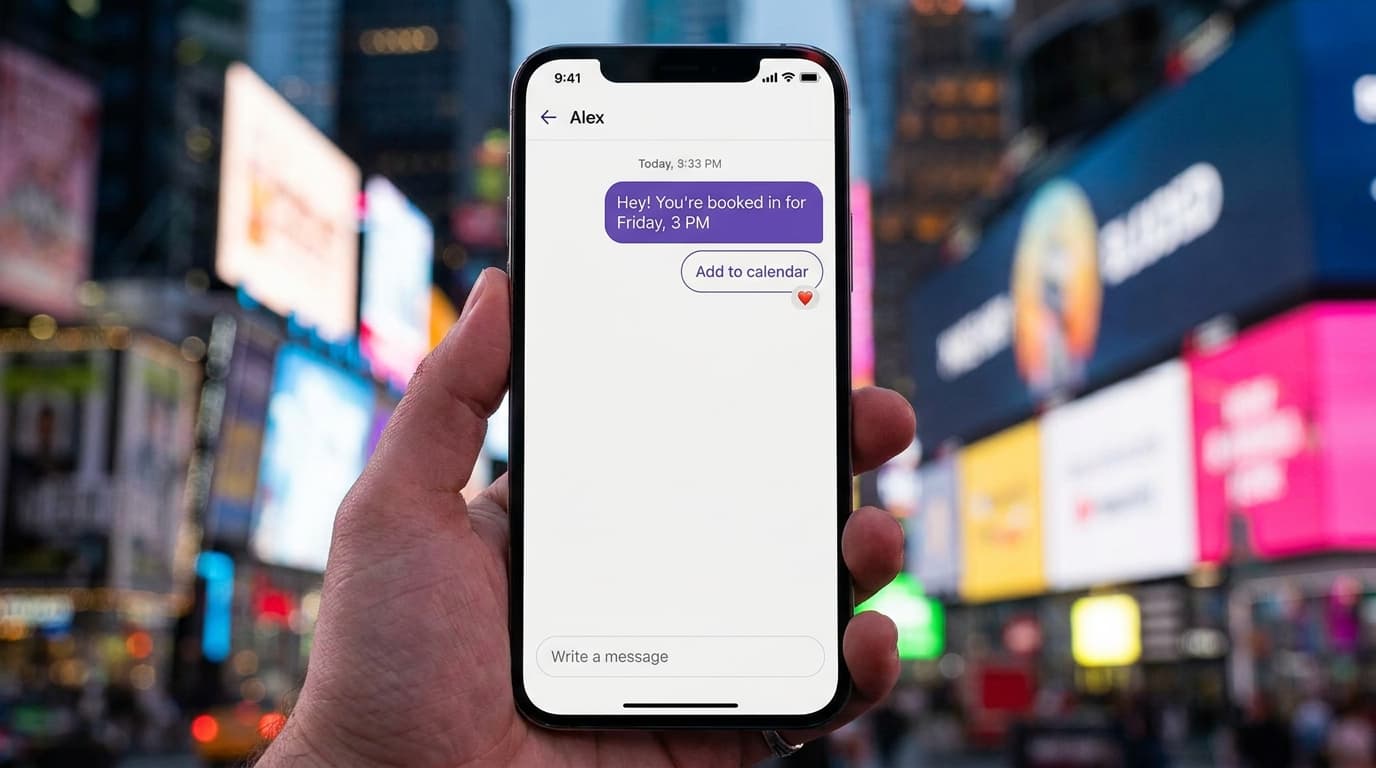
Your iPhone can do a lot more than you think with text messages. Whether you want to wish someone happy birthday at midnight, remind a client about an appointment, or check in with your team at the same time each week, you don't have to remember to hit send yourself. With iOS 18 and later, Apple introduced a built-in "Send Later" feature that lets you schedule a message up to 14 days out. But what if you need something more powerful? What if you want recurring messages, auto-replies, or location-triggered texts? That's where Shortcuts automations, Focus modes, and third-party apps come in. This guide walks you through every method to send automatic text messages on your iPhone, from the simplest native options to more advanced setups. You'll get step-by-step instructions, troubleshooting tips, and honest advice about what works and what doesn't. No fluff, just practical steps you can follow right now.
Native iOS Scheduling via the Shortcuts App
Before iOS 18, Apple didn't offer a simple way to schedule texts. You had to get creative. The Shortcuts app filled that gap, and it's still the best free tool for automating messages on iPhones running iOS 15, 16, or 17. Even on iOS 18, Shortcuts offers more flexibility than the basic Send Later feature because you can tie messages to triggers like time, location, or app activity.
The Shortcuts app comes pre-installed on every iPhone. If you've never opened it, don't worry. It's surprisingly straightforward once you understand the basic building blocks: automations and actions.
Creating a Personal Automation for Time of Day
Open the Shortcuts app and tap the Automation tab at the bottom. Then tap the plus icon in the top-right corner. Select "Personal Automation" from the options.
Here's what to do next:
- Choose "Time of Day" as your trigger.
- Set the exact time you want your message sent.
- Pick whether this runs daily, weekly, or monthly.
- Tap "Next" to move to the action screen.
You're now looking at a blank automation waiting for instructions. This is where you tell your iPhone exactly what to do when that time hits. The key thing to understand is that the trigger and the action are separate. You've just set the trigger. The action comes next.
Configuring the Send Message Action
Tap "Add Action" and search for "Send Message." Select it, and you'll see two fields: the message body and the recipient. Tap the light blue "Message" placeholder and type your text. Then tap "Recipients" and choose a contact from your address book.
You can also add multiple recipients if you want the same message going to several people. One practical example: a salon owner could set a weekly "We have openings this Saturday!" text to a list of regular clients. A small auto shop might send a Monday morning reminder about service specials.
Test your automation by tapping the play button in the bottom-right corner. You'll see the message pop up in your Messages app. If everything looks right, tap "Next" and then "Done."
Disabling the 'Ask Before Running' Prompt
Here's the part most people miss. By default, Shortcuts asks for your confirmation before running any automation. That defeats the whole purpose of automatic texts. You need to turn this off.
On iOS 15.4 and later, you'll see a toggle labeled "Ask Before Running" on the final setup screen. Switch it off. You might also see "Notify When Run," which you can leave on or off depending on whether you want a heads-up each time.
On older iOS versions, some automations won't let you disable the confirmation prompt. This is a known limitation. If you're stuck on iOS 14 or early iOS 15, the automation will send a notification asking you to approve the message. It's not truly automatic in that case, but it's still a helpful nudge.
Automating Texts Based on Event Triggers
Time-based automations are great, but your iPhone can also send texts based on real-world events. Arriving at a location, connecting to a specific Wi-Fi network, or switching on a Focus mode can all trigger an automatic message. These event-based automations feel almost magical once you set them up.
Sending Auto-Replies via Focus Modes
Focus modes aren't just for silencing notifications. They can send automatic replies to anyone who texts you while a Focus is active. This is perfect for "Do Not Disturb" scenarios, like when you're in a meeting or driving.
Here's how to set it up:
- Go to Settings, then Focus.
- Choose an existing Focus or create a new one.
- Scroll down and look for "Focus Status" or the auto-reply option under your messaging settings.
- Toggle on the auto-reply and customize your message.
The auto-reply only goes to people who text you while the Focus is active. It won't spam your entire contact list. You can also limit replies to favorites only or allow all contacts.
A real-world use case: a healthcare clinic receptionist could activate a "Busy" Focus during patient hours with an auto-reply saying, "We're currently with patients. We'll respond within the hour." It sets expectations without anyone lifting a finger.
Location-Based Text Automations
Back in the Shortcuts app, you can create automations triggered by arriving at or leaving a specific location. Tap "Create Personal Automation," then choose "Arrive" or "Leave." Search for an address or drop a pin on the map.
Pair this with a Send Message action, and your iPhone texts someone every time you reach that spot. Parents use this to let their kids know they're on the way home. Delivery drivers use it to alert customers they're nearby. Business owners use it to notify staff when they arrive at the office.
One important caveat: location-based automations still require the "Ask Before Running" prompt on most iOS versions. Apple restricts fully automatic location triggers for privacy reasons. You'll get a notification, tap it, and the message sends. It's one extra tap, but it's still faster than typing a message yourself.
Managing Recurring Text Schedules
Sending a single scheduled text is easy enough. The real challenge is setting up messages that repeat on a predictable schedule. Maybe you run a tutoring business and want to send weekly session reminders. Or you manage a retail store and want to text your team every Friday about weekend inventory prep.
Setting Daily, Weekly, or Monthly Frequencies
The Shortcuts app handles recurring schedules natively. When you create a Time of Day automation, you'll see a "Repeat" option right below the time picker. Your choices are straightforward: daily, weekly, or monthly.
For weekly automations, you can pick specific days. Want a message every Tuesday and Thursday? You'll need to create two separate automations, one for each day. It's a minor hassle, but it works.
Monthly automations trigger on a specific date. If you pick the 31st, be aware it won't fire in months with fewer days. Picking the 28th is safer for true monthly consistency.
Here's a practical setup for a small business owner:
- Create a "Monday Morning" automation at 8:00 AM that texts your team a weekly update.
- Create a "First of the Month" automation that reminds clients about upcoming billing.
- Create a "Friday at 5 PM" automation that sends a thank-you text to that week's new customers.
Each automation lives independently in the Shortcuts app. You can toggle them on or off without deleting them. This is handy for seasonal businesses that only need certain messages during peak months.
For iOS versions before iOS 18, the Shortcuts app remains the primary method for recurring message schedules. If you've upgraded to iOS 18, you also have the native Send Later option in Messages, but that only handles one-off scheduled texts, not repeating ones.
Third-Party Apps for Advanced Scheduling
The built-in tools cover a lot of ground, but they have real limits. If you need bulk messaging, multi-recipient scheduling, or message templates, you'll want a dedicated app.
Limitations of the Native iMessage API
Apple keeps tight control over iMessage. Third-party apps can't send iMessages on your behalf. They can only send SMS or work through their own messaging systems. This means any app you download will either send standard SMS texts (which may cost money per message through a carrier) or route messages through an alternative platform.
Shortcuts automations also can't handle complex logic well. You can't say, "If this client hasn't replied in two days, send a follow-up." There's no conditional branching based on incoming messages. The automation is one-directional: your iPhone sends a message, and that's it.
For businesses, this is a real bottleneck. You can't build a proper client communication workflow using just Shortcuts and iMessage. The system wasn't designed for that.
Top-Rated Apps for Bulk and Delayed Messaging
Several third-party apps offer advanced scheduling features like recurring messages, multiple recipients, and message templates. Here are the most popular options:
- Scheduled : Lets you compose texts and schedule them for later. Free tier available, with premium plans around $2-5/month for recurring messages.
- Moxy Messenger : Focuses on group messaging and templates. Good for small teams.
- Remind Me : Works more like a calendar-based reminder system that prompts you to send a pre-written text at the right time.
If your needs go beyond personal texting and into business messaging across multiple channels, a platform like Wexio might be a better fit. Instead of wrestling with iPhone-only tools, you can manage conversations across WhatsApp, Telegram, Instagram, and Viber from a single dashboard. Wexio's no-code flow builder lets you set up conditional branching, auto-replies powered by GPT-4 and Claude, and recurring message sequences without writing a single line of code. There's a free tier with 100 operations per month, so you can test it without pulling out a credit card.
Troubleshooting iPhone Automation Failures
You set everything up perfectly. The automation doesn't fire. This happens more often than you'd expect, and the fixes are usually simple.
Fixing Shortcuts Not Running in the Background
The most common reason automations fail is that your iPhone killed the Shortcuts app in the background. iOS aggressively manages memory, and Shortcuts sometimes gets shut down to free up resources.
Here's a checklist to fix it:
- Make sure Background App Refresh is turned on. Go to Settings, then General, then Background App Refresh. Find Shortcuts and toggle it on.
- Don't force-quit the Shortcuts app. Swiping it away from the app switcher tells iOS you don't need it running.
- Check your notification settings. Go to Settings, then Notifications, then Shortcuts. Make sure notifications are allowed. Some automations won't run silently if notifications are blocked.
- Restart your iPhone. A fresh reboot clears out memory issues that might prevent automations from triggering.
- Update iOS. Apple frequently patches Shortcuts bugs in minor updates. Running the latest version helps.
Another sneaky issue: if you set a time-based automation and your iPhone is powered off at that time, the automation won't run. It doesn't queue up and fire later. It just skips. Keep your phone charged and on if you're relying on timed automations for anything important.
Low Power Mode can also interfere. When your battery drops below 20% and Low Power Mode kicks in, background activity gets throttled. Your automation might not trigger until the phone is charged again.
If you've tried everything and automations still fail, delete the automation and rebuild it from scratch. Corrupted automation files are rare but not unheard of. A fresh build often fixes mysterious issues.
Best Practices for iPhone SMS Automation
Automatic texts are powerful, but they can backfire if you're not thoughtful about how you use them. A few guidelines will keep you out of trouble.
Keep your messages short and personal. Nobody wants to receive a robotic wall of text. Write like a human, even if a machine is sending it. Use the recipient's name if possible. A message that says "Hey Sarah, just a reminder about your 3 PM appointment tomorrow" lands better than "This is an automated reminder for your upcoming appointment."
Don't over-automate. Sending too many automatic texts trains people to ignore you. Pick the messages that genuinely matter: appointment reminders, time-sensitive updates, birthday wishes. Skip the ones that feel like spam.
Respect opt-out requests immediately. If someone asks you to stop texting them, remove them from your automations right away. For business texting, this isn't just polite. It's a legal requirement under regulations like TCPA in the US and GDPR in Europe.
Review your automations regularly. Open the Shortcuts app once a month and check what's running. Old automations you forgot about might be sending outdated information. A quick audit prevents embarrassing mistakes.
For businesses scaling beyond a handful of contacts, iPhone-native tools will eventually hit a wall. That's the point where a dedicated messaging platform makes sense. Wexio, for instance, offers 12 or more industry-specific automation templates out of the box, covering everything from appointment confirmations to post-purchase follow-ups. It's built with enterprise-grade security: AES-256 encryption and TLS 1.3, all hosted on EU infrastructure for GDPR compliance.
The ability to automatically text people from your iPhone is genuinely useful for personal and light business use. For anything beyond that, you'll want a proper system. The good news is that you now know exactly how to set up every type of automation your iPhone supports, from simple scheduled texts to location-based triggers and Focus mode auto-replies.
If you're ready to move past iPhone-only tools and automate customer conversations across WhatsApp, Instagram, Telegram, and more, get started with Wexio and see how a unified messaging platform handles the heavy lifting for you.
Sources
- Apple Support: Schedule a text message to send later
- Asurion: How to schedule a text on iPhone
- Setapp: How to schedule a text message on iPhone
- Wide Angle Software: Schedule a text message on iPhone and Android